
The OneTrust Integration Example That Finally Made Sense to Me

Integrations within the OneTrust application can feel overwhelming at first, especially when you are trying to make sense of its many configuration options and APIs. In this article, I’ll share a very basic OneTrust integration example that helped everything “click” for me, with the hope that it saves you time and makes your own implementation a little easier.
Let’s dive in to our Example together…
Within the integrations module, let’s add a new integration.
Give it the Name it deserves
Select Generic as the System
Provide an email address for the Notification Email
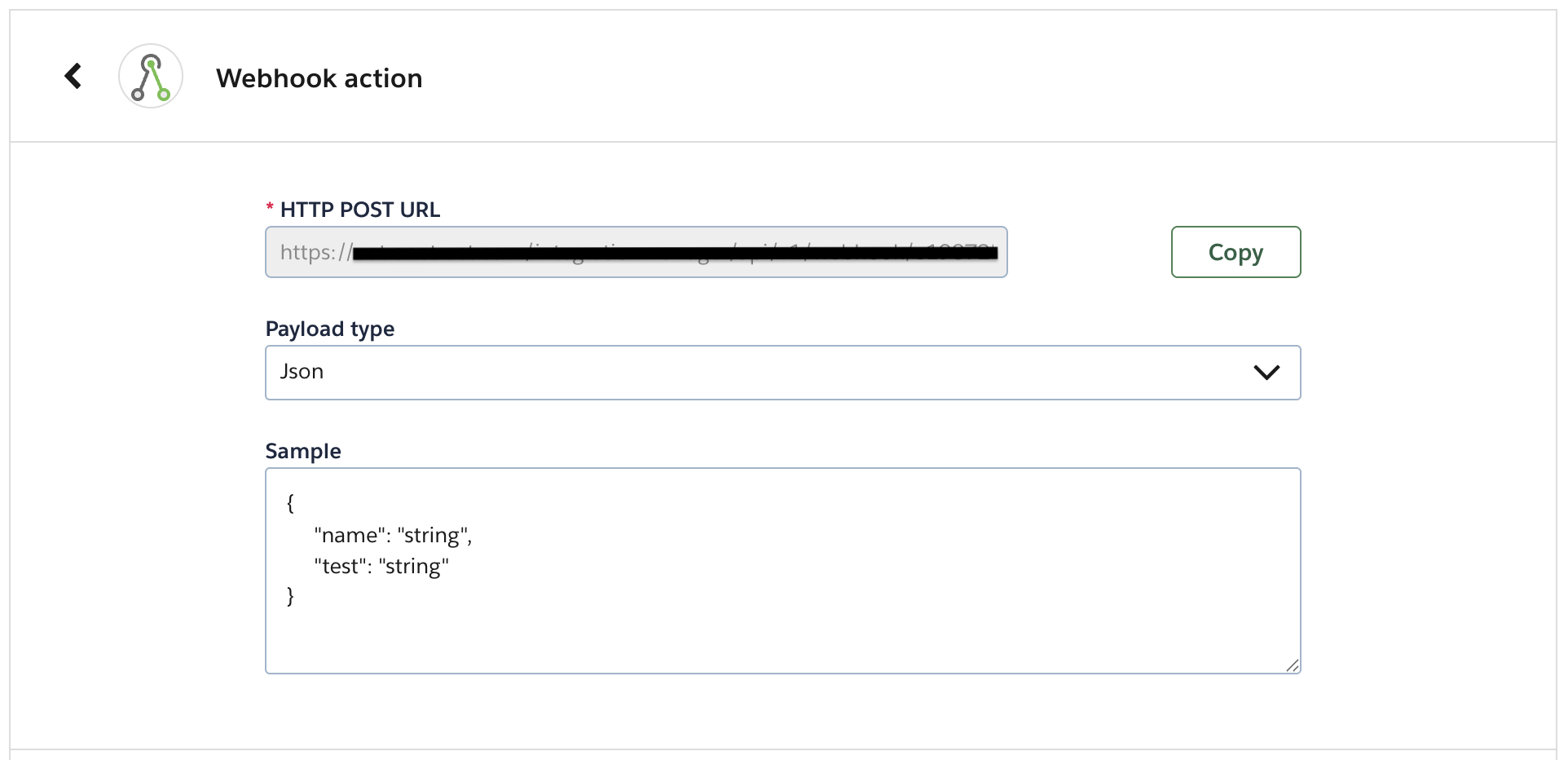
Choose Webhook action as the main trigger and Json as the Payload type.
What’s great is that you can input just about any Json you would like. For this example we are going to use the following:
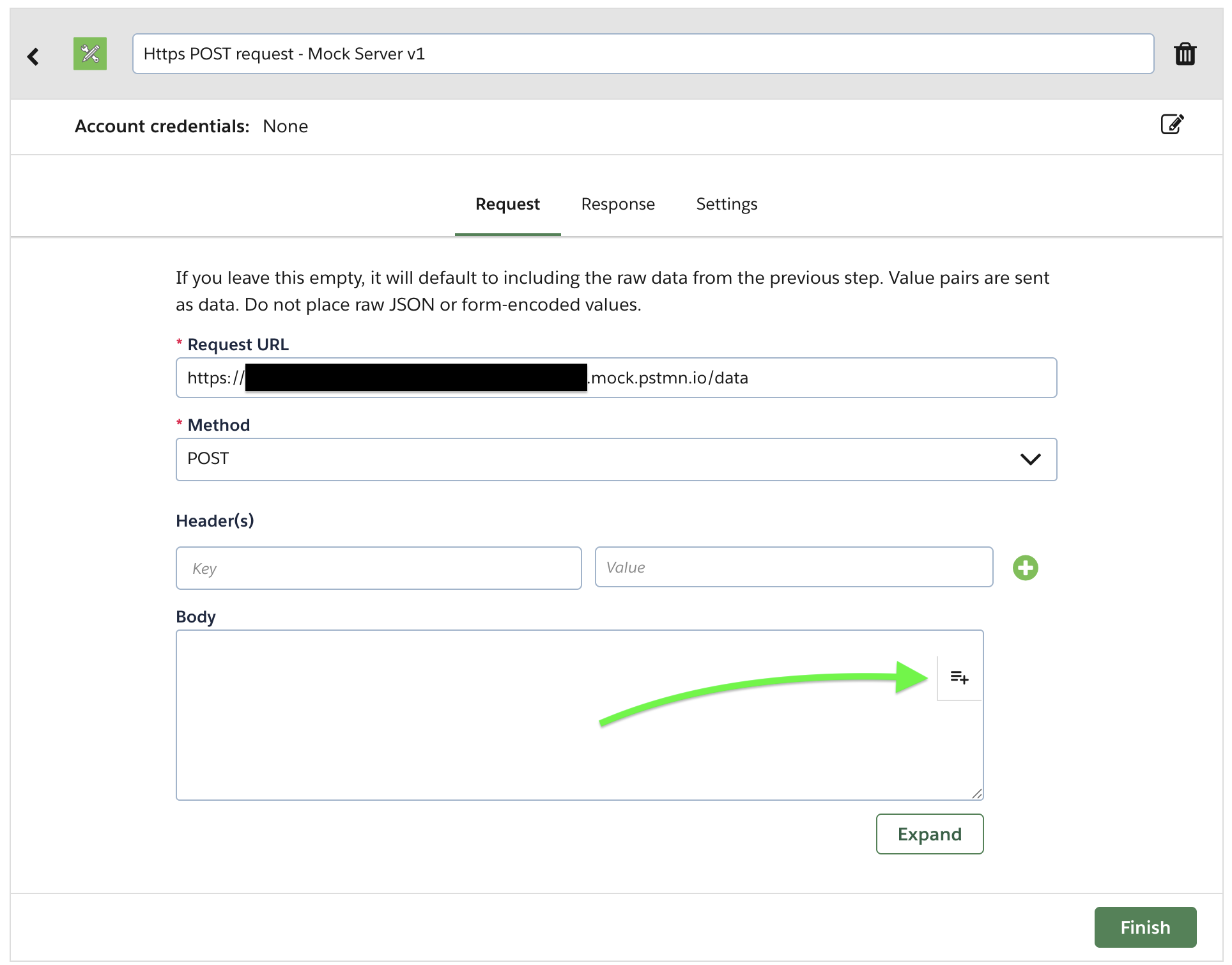
For the next action, I have selected Https POST Request and am using a Mock Server endpoint (API) that I have set up in Postman.
In the Body text area, select the Variable Content Icon and look for the row Webhook.
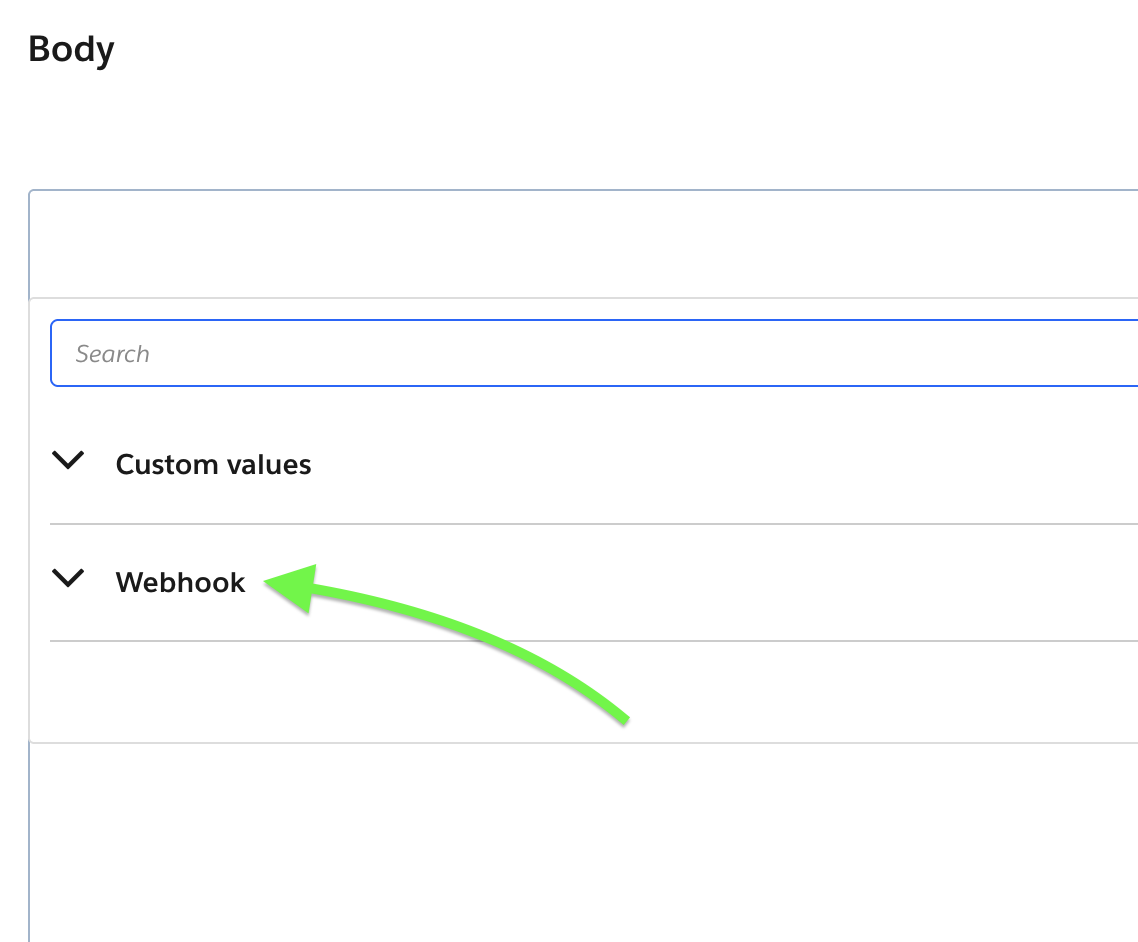
When scrolling through the list of available options, we will find the name and test variables we created together, that will look similar to the following:
event.payload.name “string”
event.payload.test “string”
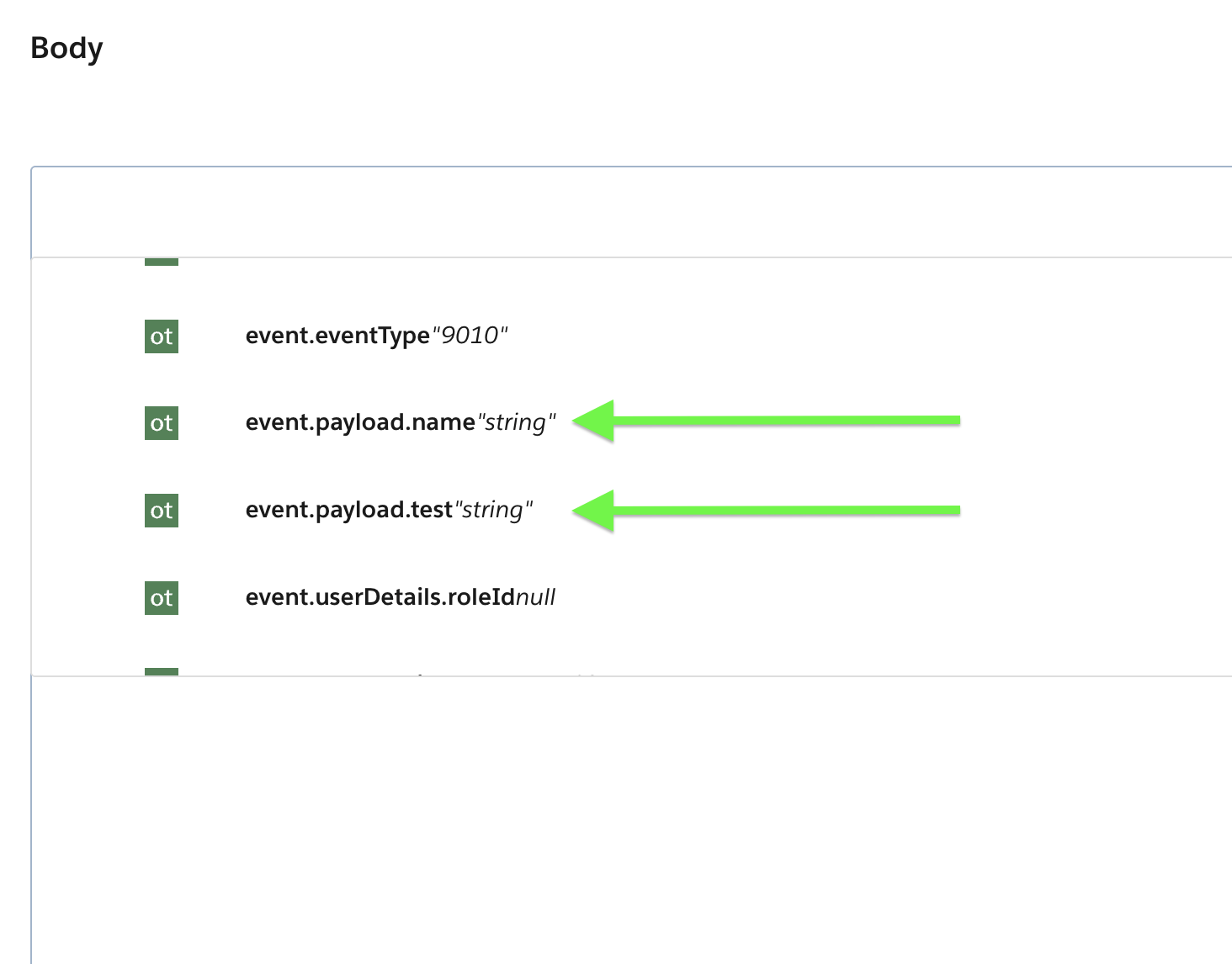
Select these two and notice that they now appear in the Body text area for us. (I have added some additional text, but it is completely optional.)
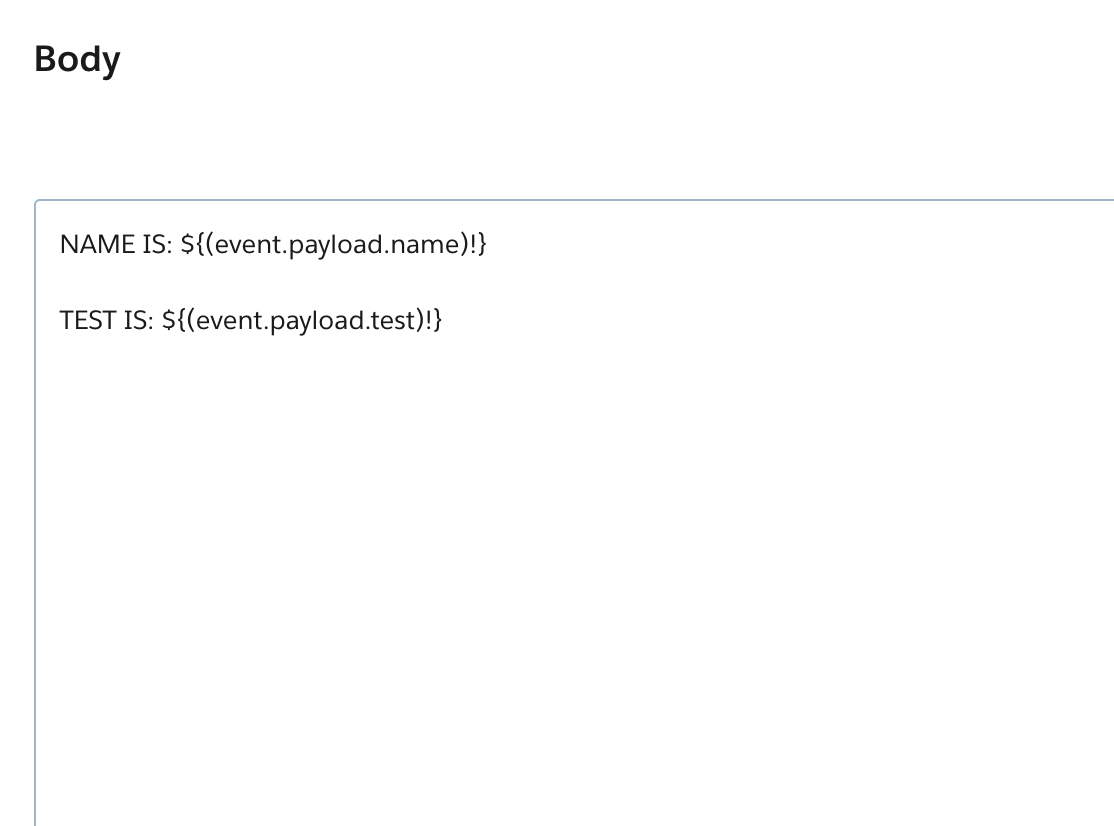
Perfect, we are doing great.
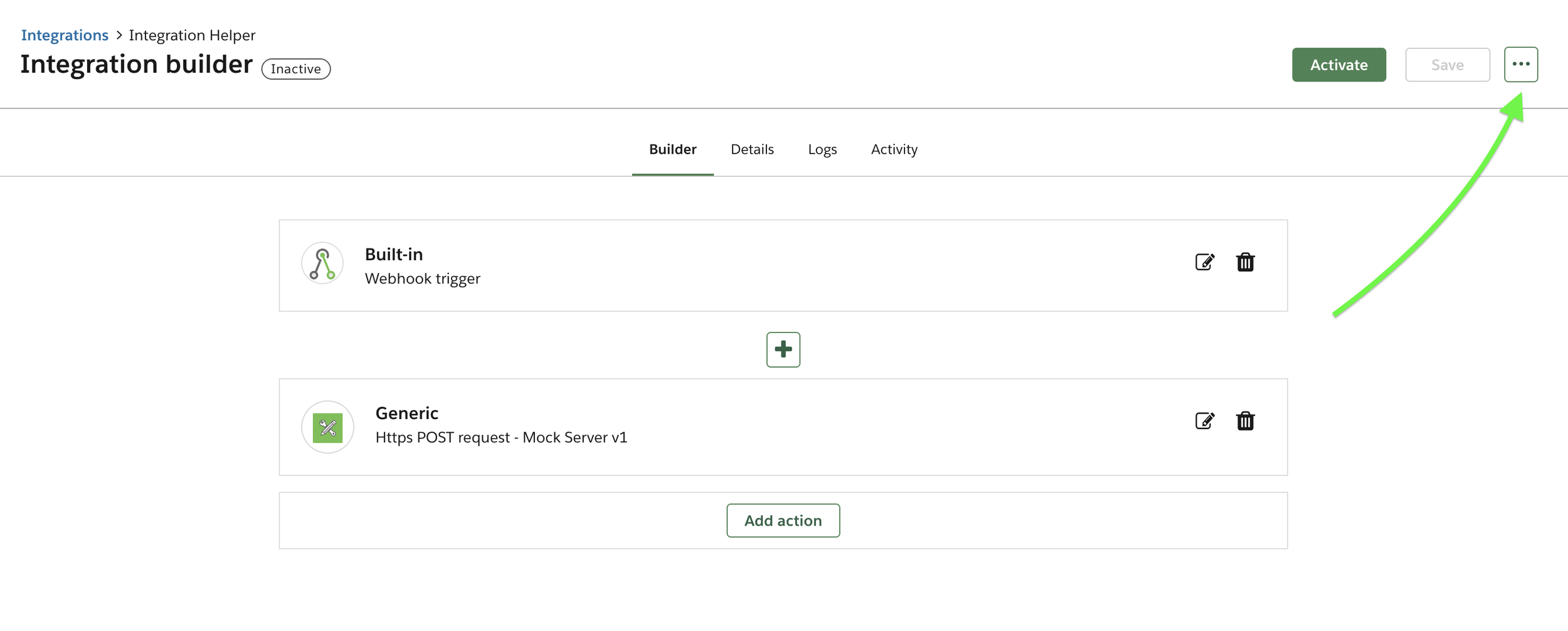
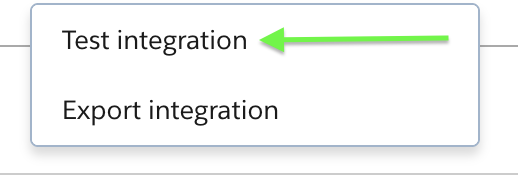
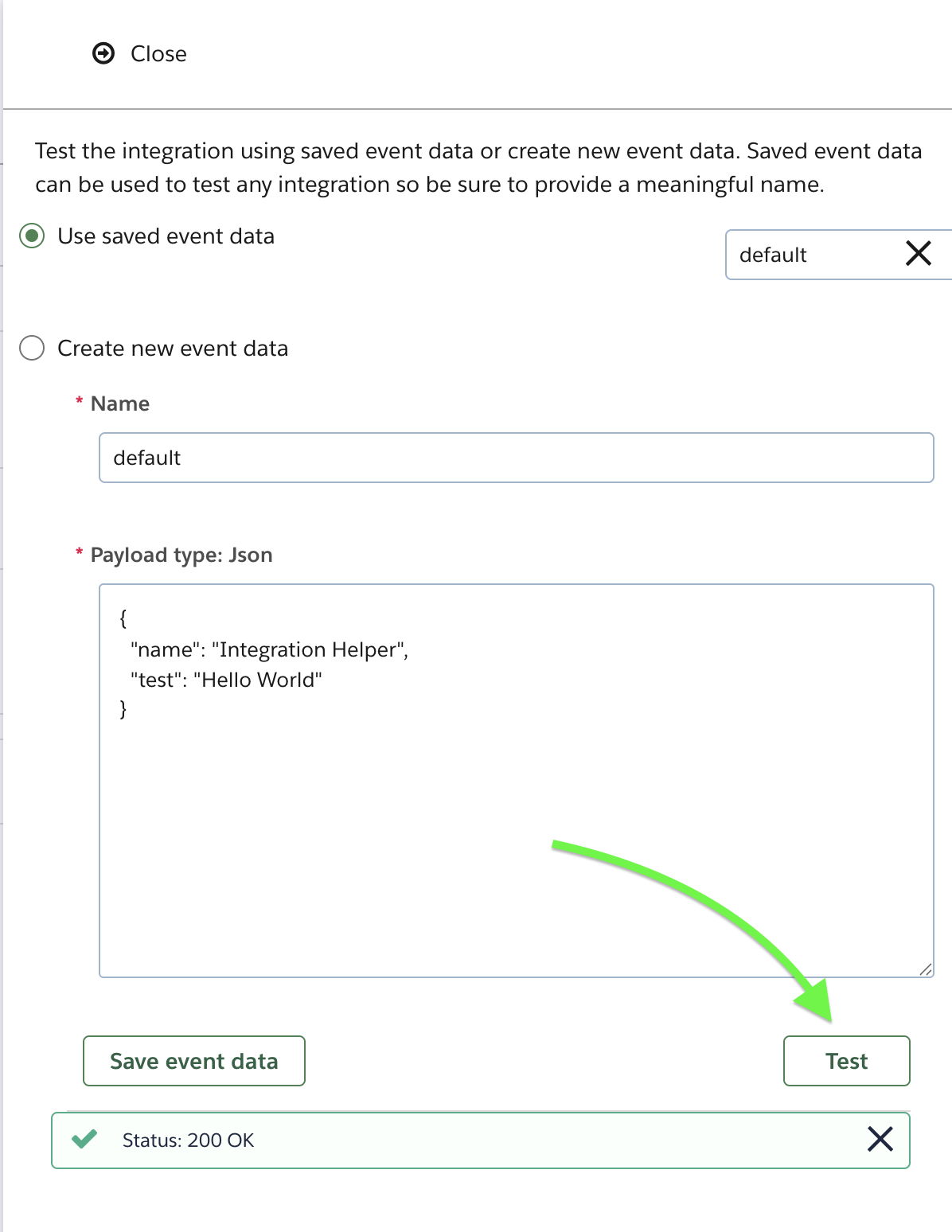
Go ahead and save the integration, then select the Context Menu Icon and Test Integration.
In the Payload type: Json, put some test (string) values in for name and test.
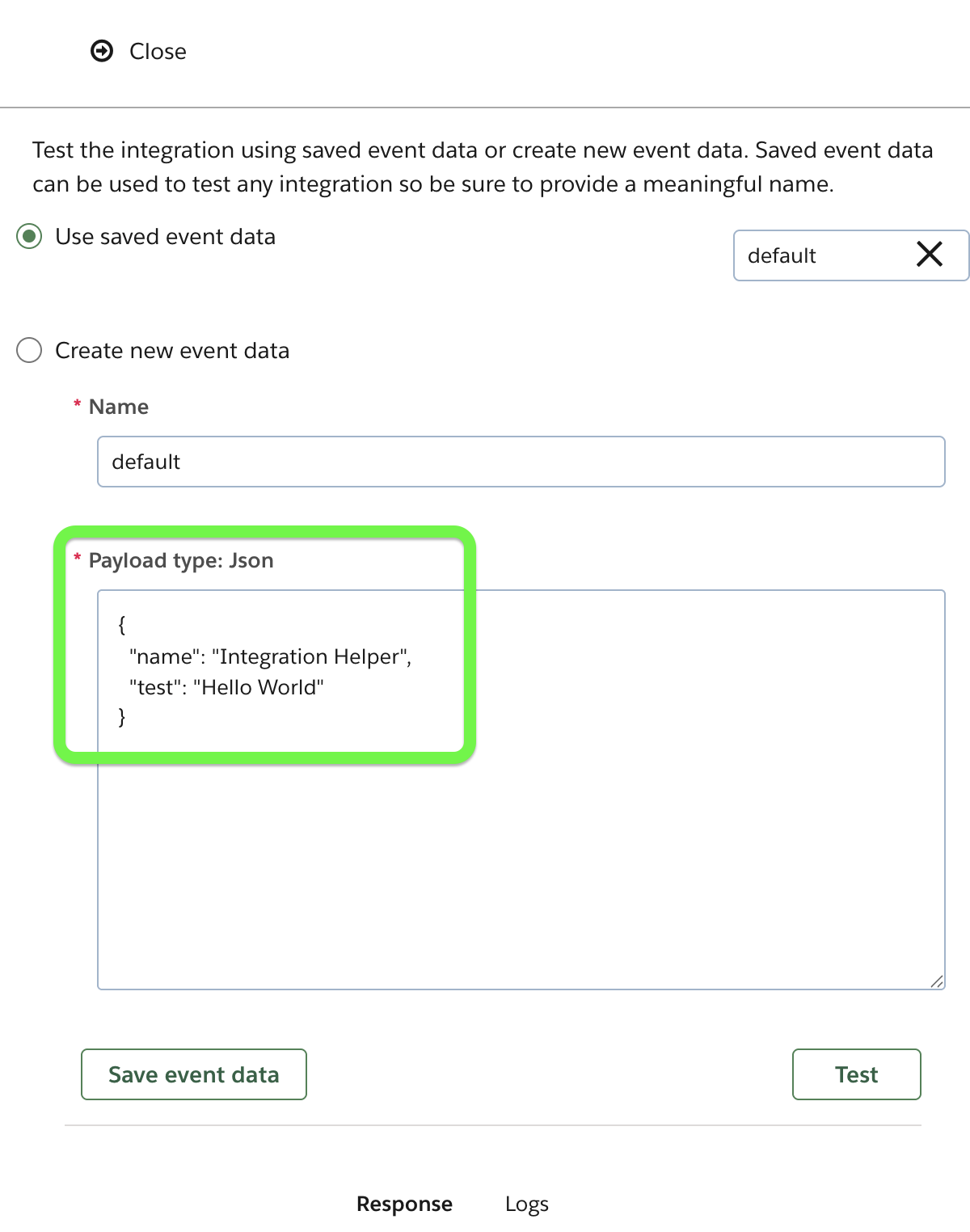
Select the Test button and if all goes well we will see a 200 OK message.
Awesome!
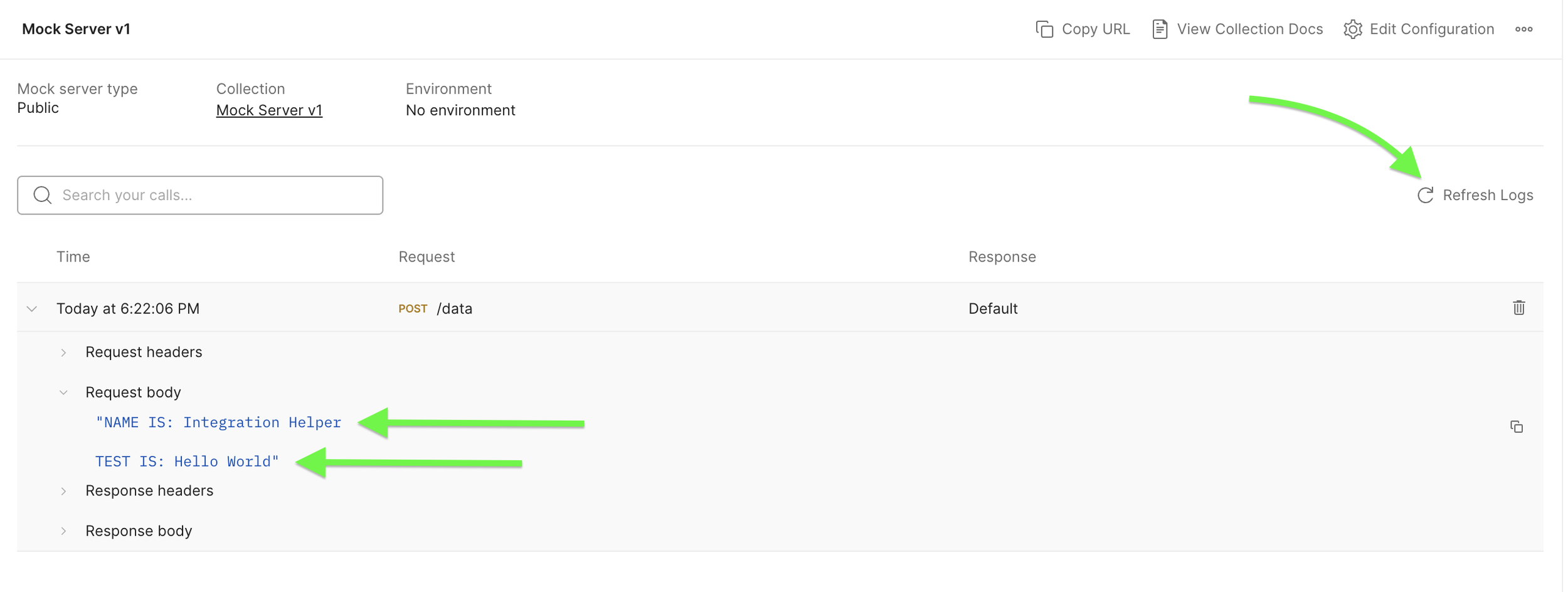
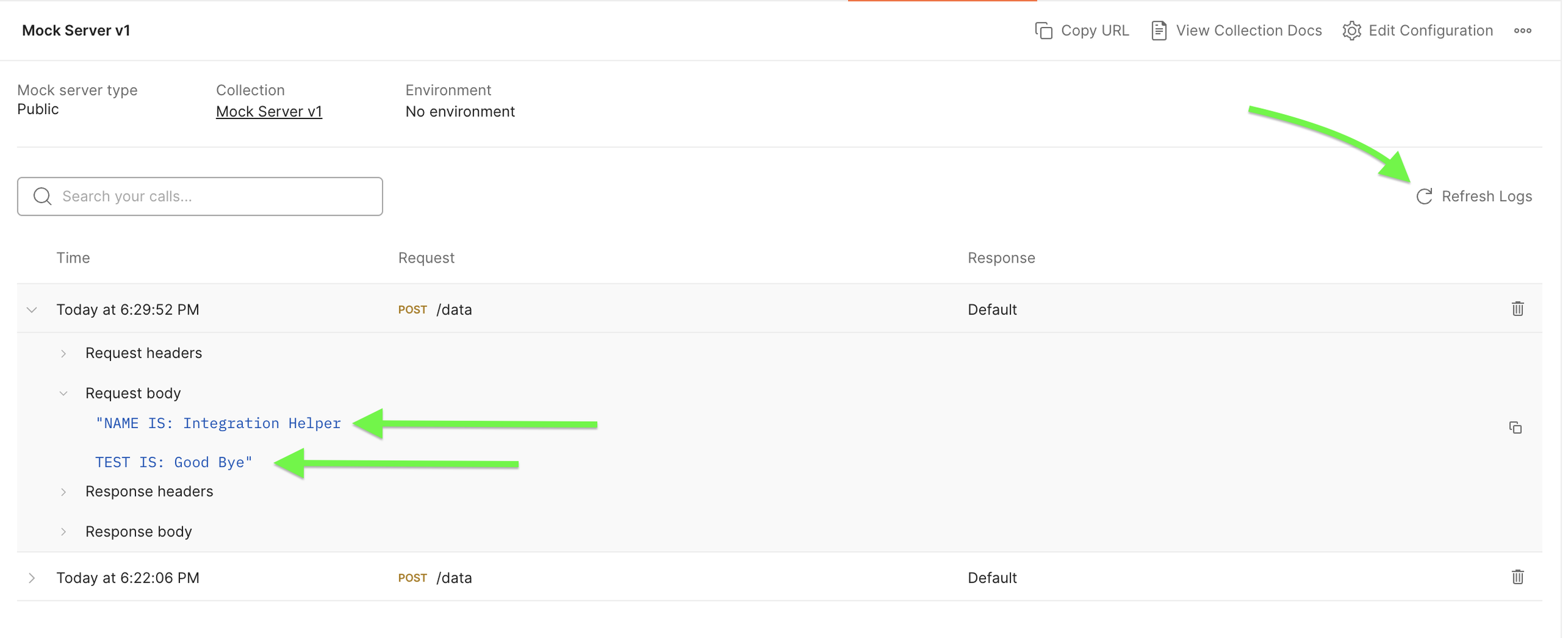
Let’s take a look at the Postman mock server response together. (You may have to click “Refresh Logs”)
In the Request body we can see the test values that we passed.
Pretty cool, right. And that is pretty much it on this example for us.
If you want to take it a step further and make an API call to the integrations OneTrust Webhook URL (API) trigger, then keep scrolling my friend.
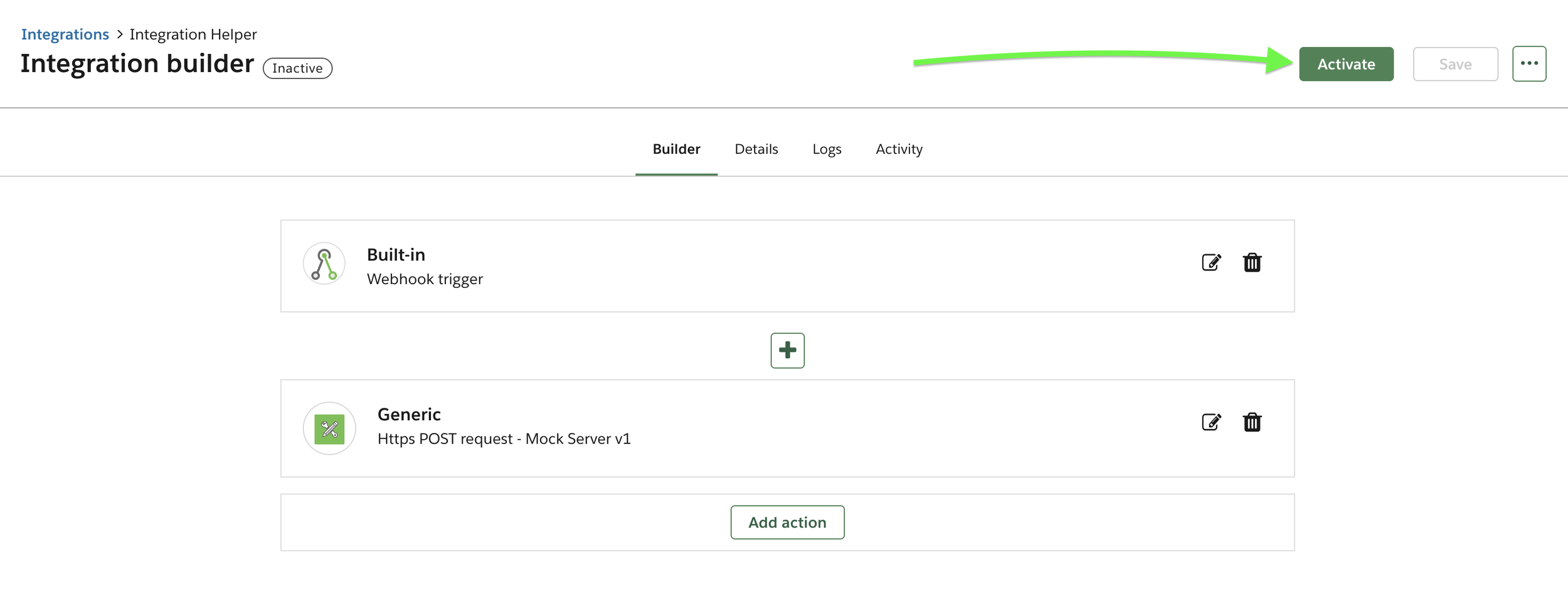
Go back to the integration and select Activate.
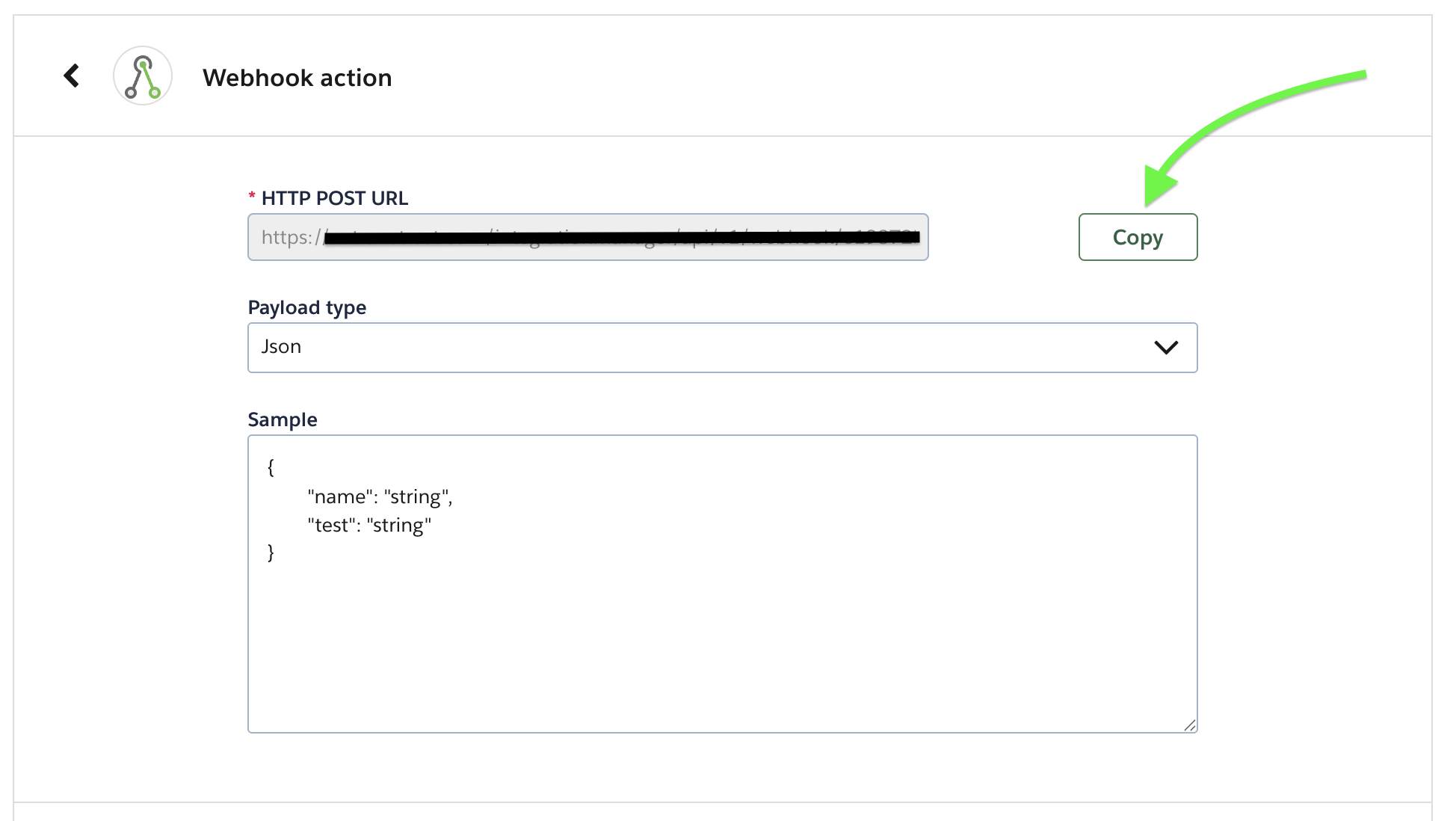
Open up the Webhook trigger and select Copy, which will copy the HTTP Post URL (OneTrust Webhook URL, API).
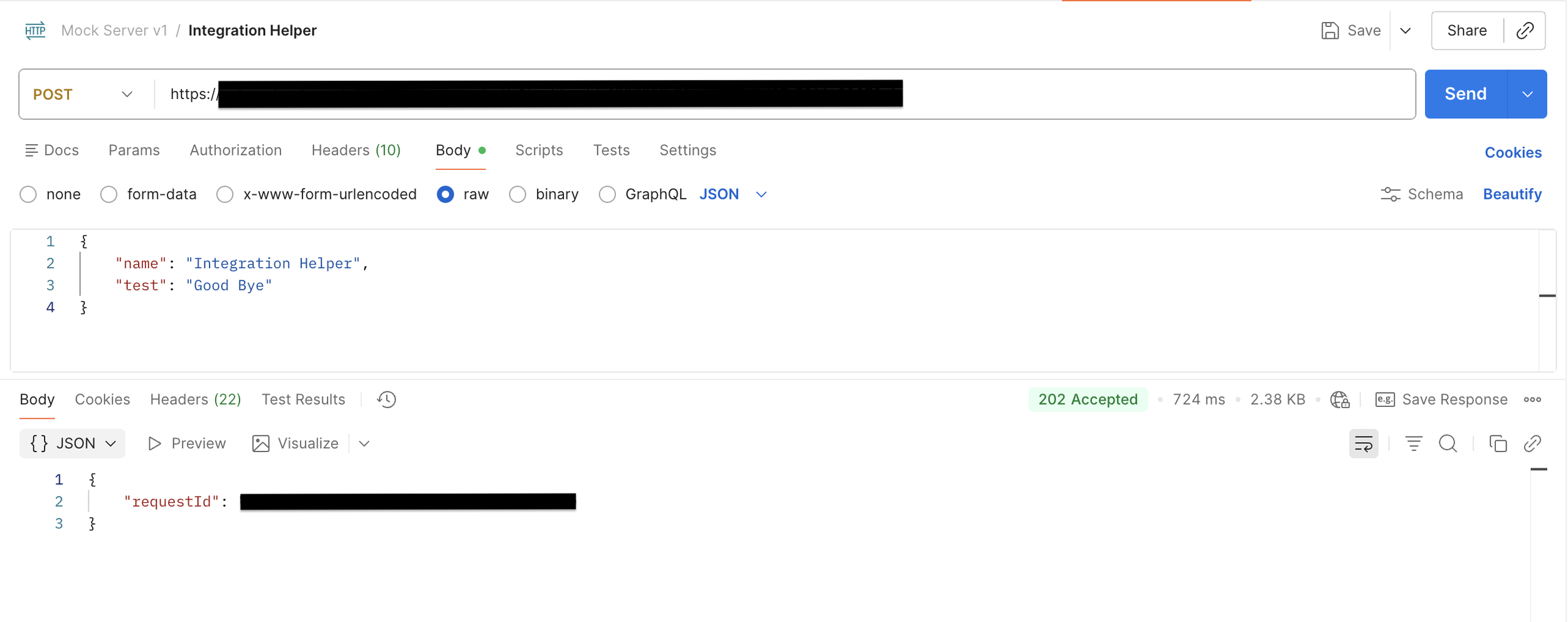
In this example, I am using a Collection in Postman to make the API call.
Paste the OneTrust Webhook into Postman, and input the Json payload into the body.
Select Send, and we will see a 202 Accepted status and Json response.
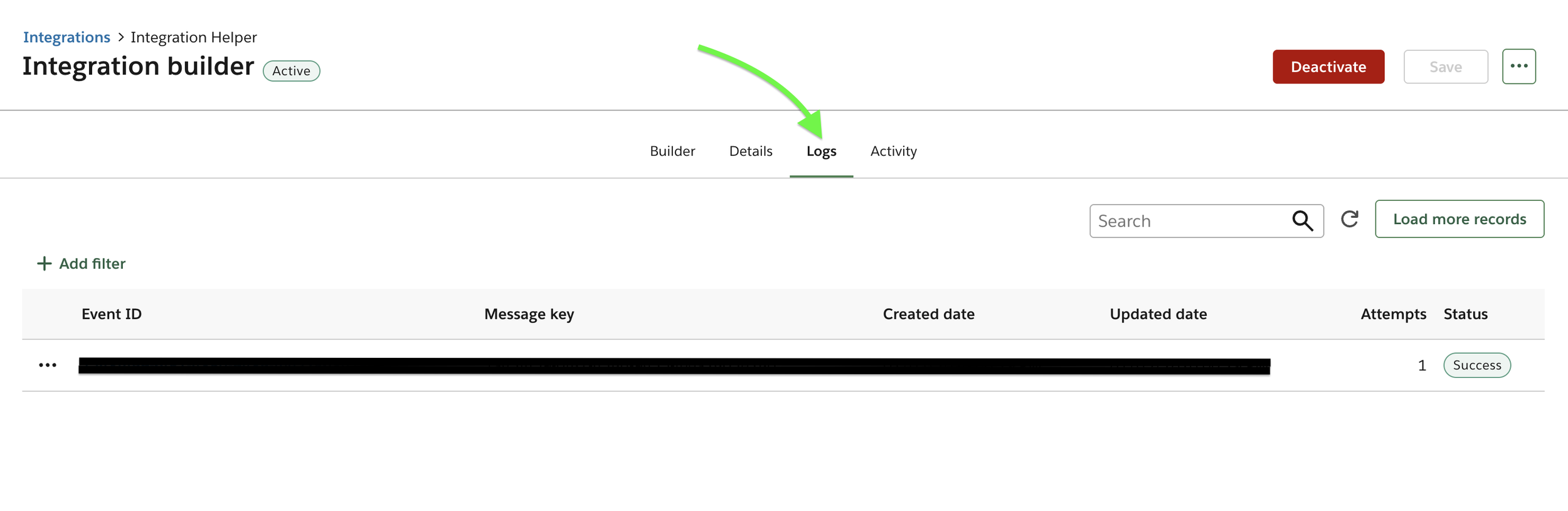
Back in the OneTrust integration take a look at the Logs for our successful event.
Since the integration is also calling our Postman Mock Server API, we can view those results as well.
That is it my friends, I hope this helped provide a little bit of insight for you.
There are some amazing and beautiful workflows that can be created with OneTrust integrations.
If you have questions or need help, feel free to contact us.